HP printers are known for their reliability and high-quality printing performance. However, like any electronic device, they can occasionally experience issues such as paper jams, connectivity problems, poor print quality, or error messages. Fortunately, many common HP printer problems can be diagnosed and fixed without professional assistance.
This guide will walk you through the most effective methods to repair your HP printer and restore it to optimal working condition.
1. Identify the Problem
Before attempting any repair, determine the exact issue affecting your printer. Common HP printer problems include:
- Printer not turning on
- Paper jams
- Poor print quality
- HP Printer offline errors
- Wireless connectivity issues
- Ink cartridge errors
- Slow printing performance
Understanding the problem helps you apply the correct solution and avoid unnecessary repairs.
2. Check Power and Connections
If your HP printer won’t turn on or isn’t responding:
- Ensure the power cable is securely connected.
- Verify that the power outlet is functioning properly.
- Disconnect the printer from the power source for 60 seconds.
- Reconnect the power cable and turn the printer back on.
For USB-connected printers, inspect the cable for damage and reconnect it to a different USB port if necessary.
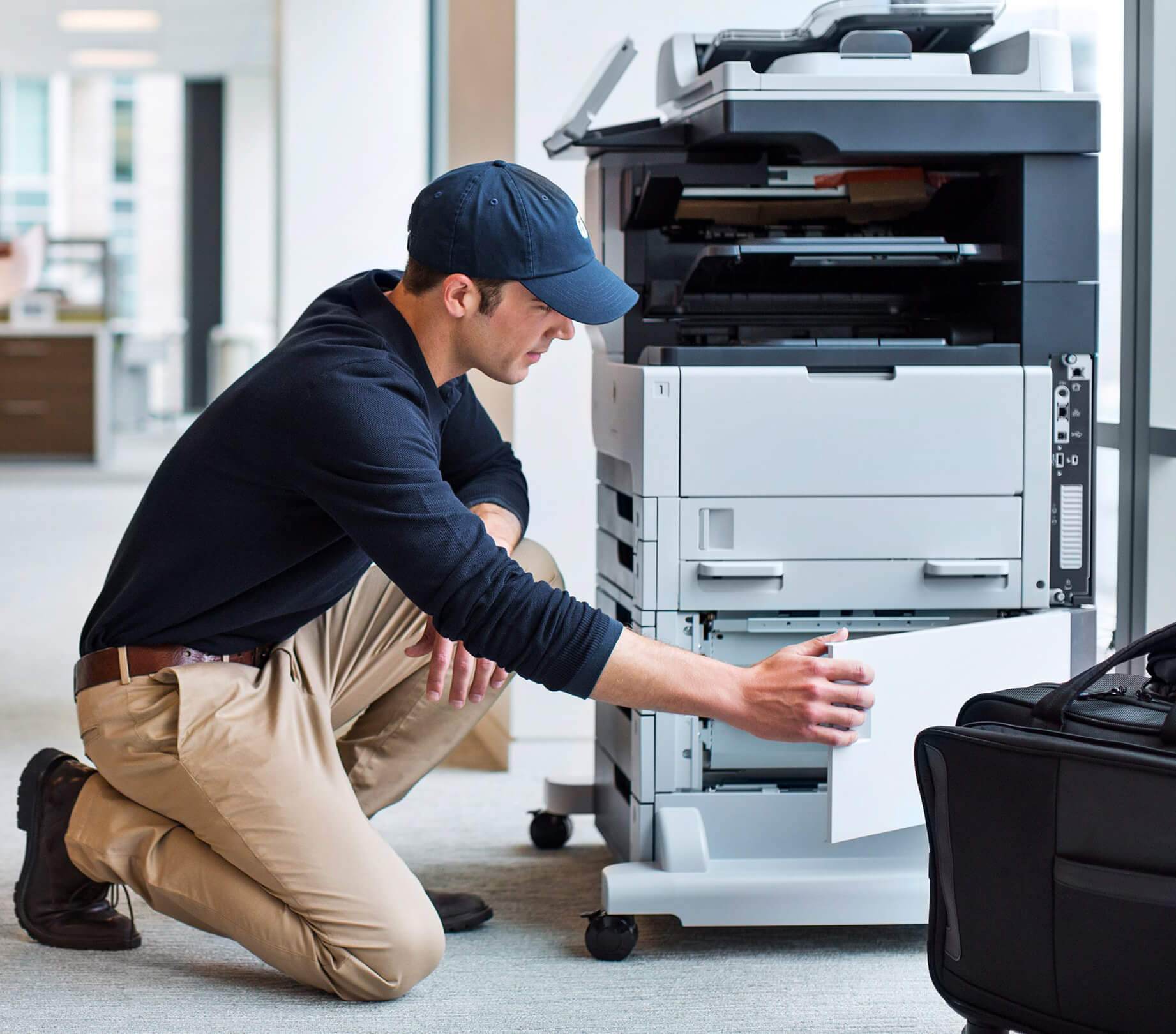
3. Clear Paper Jams
Paper jams are among the most common printer issues.
To remove a paper jam:
- Turn off the printer and unplug it.
- Open all access doors and trays.
- Carefully remove any stuck paper using both hands.
- Check for torn paper fragments inside the printer.
- Close all compartments and restart the printer.
Avoid pulling paper forcefully, as this may damage internal components.
4. Resolve Print Quality Issues
If your documents appear faded, streaked, or blurry:
Clean the Printhead
Most HP printers include an automatic printhead cleaning feature.
- Open the printer settings menu.
- Navigate to Maintenance or Tools.
- Select “Clean Printhead.”
- Follow the on-screen instructions.
Check Ink Levels
Low ink levels can negatively impact print quality. Replace any cartridges that are empty or nearing depletion.
Align the Printer
Printer alignment ensures accurate ink placement.
- Access the printer maintenance settings.
- Select “Align Printer.”
- Complete the alignment process.
5. Fix Wireless Connectivity Problems
If your HP printer cannot connect to Wi-Fi:
- Restart your router and printer.
- Ensure the printer is within range of the wireless network.
- Verify that the correct Wi-Fi network is selected.
- Re-enter the wireless password if necessary.
You can also use the HP Smart application to reconnect and configure wireless settings.
6. Update Printer Drivers and Firmware
Outdated drivers and firmware can cause performance issues and communication errors.
To update your printer:
- Visit HP’s support website.
- Search for your printer model.
- Download the latest drivers and firmware updates.
- Install the updates according to HP’s instructions.
Keeping software up to date improves security, compatibility, and overall printer performance.
7. Resolve “Printer Offline” Errors
If your printer shows as offline:
- Restart both the printer and computer.
- Ensure the printer is connected to the network.
- Open your computer’s printer settings.
- Set the HP printer as the default printer.
- Disable the “Use Printer Offline” option if enabled.
These steps often restore communication between the printer and your device.
8. Check and Replace Ink Cartridges
Faulty or improperly installed cartridges can trigger error messages.
To inspect cartridges:
- Open the cartridge access door.
- Remove and reinstall each cartridge securely.
- Clean cartridge contacts with a lint-free cloth if needed.
- Replace damaged or expired cartridges.
Always use genuine HP cartridges when possible to reduce compatibility issues.
9. Perform a Factory Reset
If persistent errors remain unresolved, a factory reset may help.
To reset your HP printer:
- Access the printer’s control panel.
- Open Settings.
- Select Printer Maintenance or Restore Settings.
- Choose “Restore Factory Defaults.”
Keep in mind that a factory reset will erase customized settings, including Wi-Fi configurations.
10. Contact HP Support
If none of the above solutions work, the issue may involve hardware components such as the printhead, motherboard, rollers, or power supply.
In such cases:
- Check the printer’s warranty status.
- Contact HP customer support.
- Schedule professional repair if necessary.
Attempting complex hardware repairs without proper training may cause further damage.
Conclusion
Many HP printer problems can be fixed with simple troubleshooting steps such as clearing paper jams, updating drivers, cleaning printheads, or restoring network connections. Regular maintenance and software updates can help prevent future issues and extend the life of your printer. By following these repair tips, you can often resolve common printer problems quickly and avoid costly service calls.
If you have HP Printer repair needs you can contact us.